TruckerTech Flows
Whole jobs, done for you.
A Flow takes a job from start to finish: book to paid, POD to invoice, a new driver set up in every system. Each one is built from tasks, and each task is done by TruckerTech, by a system you connect, or by a person until you connect one.
Every step is a task. Plug in who does it.
A socket is where whoever does the task plugs in: TruckerTech, your system, or your team by hand. TruckerTech does its own tasks for you: reading documents, sending notices, approvals, handoffs, the invoice packet. The rest are open, ready for your TMS, your factor or your ELD.


Done for you
Ready in every Flow. Nothing to connect.
Done by what you connect
Your TMS, factor or ELD fills the step.
Until you connect one
The step lands in Actions with the load filled in. Tap done and the Flow goes on.
- A load is deliveredStarts it
- 1Chases the POD from the driver
Chase a document
- 2Files it, and flags shortage or damage
File a document
- 3Builds the packet
Build the invoice packet
- 4A person checks it
Approve or decide
you approve - 5Emails it
Send the invoice packet by email
- 6Sends it to your factor
Curated by Ridgeway Capital · swap any time
Your factorby hand until connected - 7Reads the payment status
Read payment status
Your factorby hand until connected
Turn one on. Watch it run.
Every Flow shows its steps, who fills each one, and what ran today.
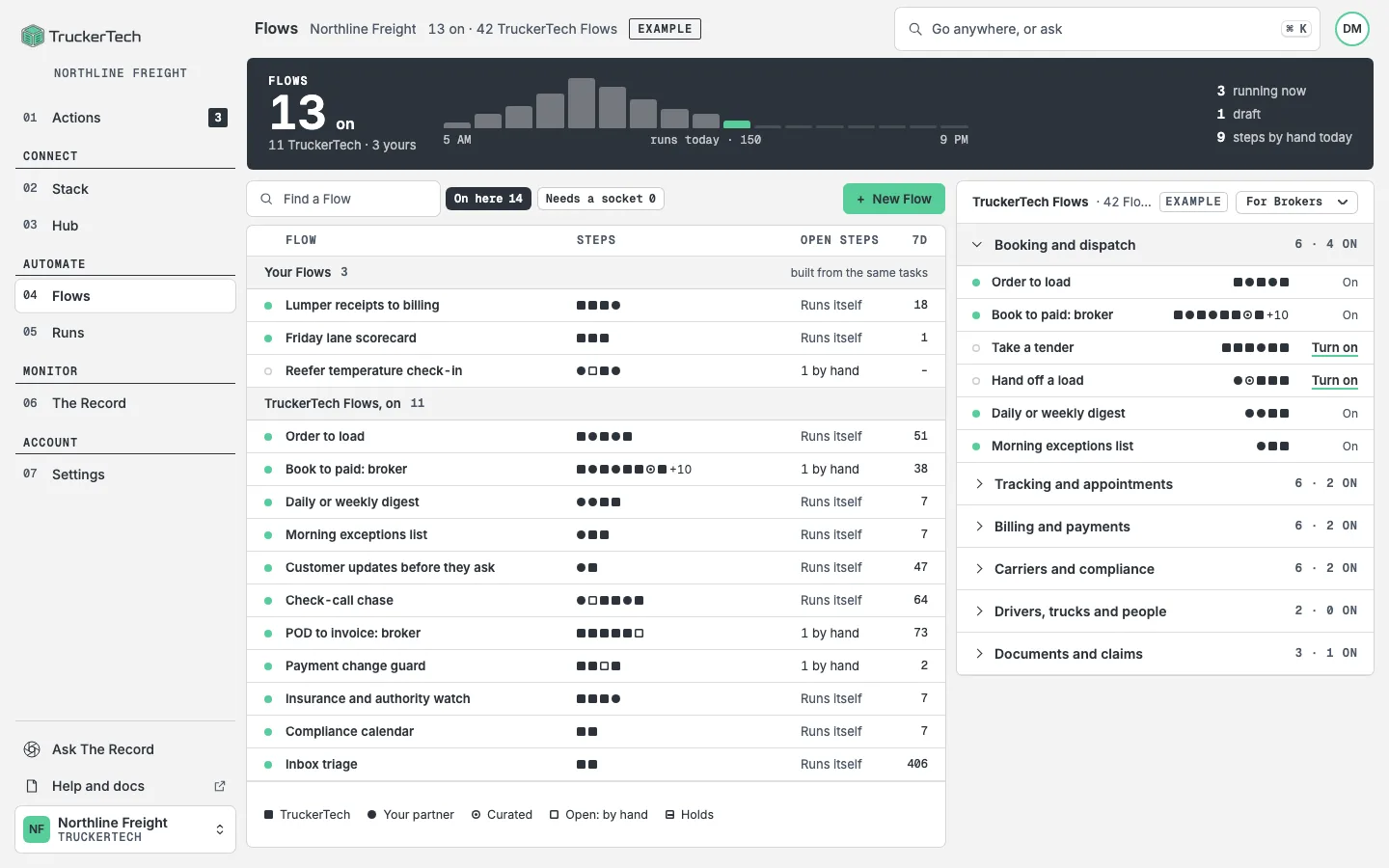
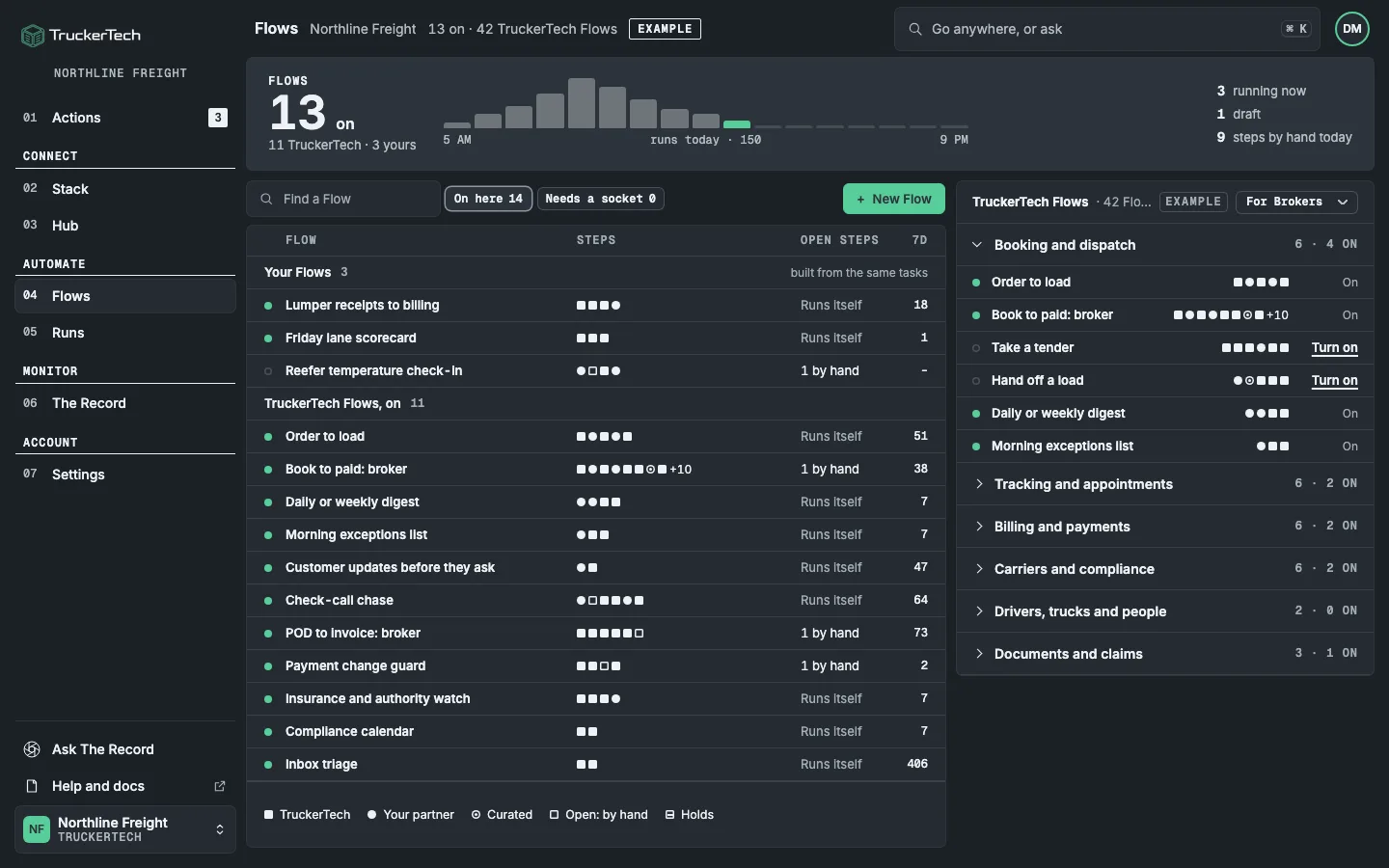
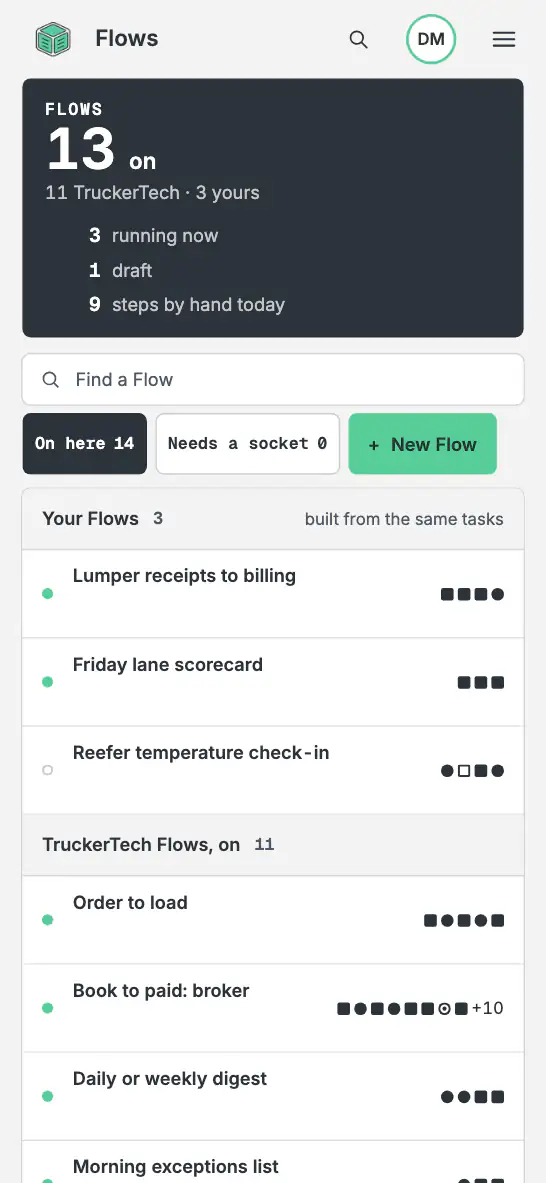
All 42 Flows, ready to turn on.
Find yours by job, or by who you are. Each one works on day one; the bar shows how much TruckerTech does before you connect anything.
Done by TruckerTechDone by your systems, or by handA Flow starts on an event, on a schedule, or by hand.
Booking and dispatch
7 Flows- Rate con to loadA rate con emailCarriersOn an event6 steps · 3 yours
- Book to paid: carrierA load is booked, or by handCarriersOn an event · By hand12 steps · 4 yours
- Take a tenderA tender arrives on TruckerTechCarriersBrokersOn an event6 steps · 1 yours
- Broker credit check before you bookA tender arrivesCarriersOn an event4 steps · 1 yours
- Hand off a loadBy hand, on a loadShippersBrokersCarriersBy hand5 steps · 2 yours
- Daily or weekly digestOn your scheduleBrokersCarriersShippersOn a schedule4 steps · 2 yours
- Morning exceptions listEach morningBrokersCarriersShippersOn a schedule3 steps · 1 yours
Tracking and appointments
3 Flows- Running lateThe ETA passes the appointment, or by handCarriersBrokersOn an event · By hand5 steps · 3 yours
- Appointment bookingA load needs an appointmentBrokersCarriersOn an event2 steps · 2 yours
- Detention, from the clock to the invoiceThe truck arrives on time, or by handCarriersBrokersOn an event · By hand5 steps · 2 yours
Billing and payments
6 Flows- Rate con against TMS load checkA rate con arrivesCarriersBrokersOn an event4 steps · 1 yours
- POD to invoice: carrierA load is deliveredCarriersOn an event7 steps · 2 yours
- Aged invoice dunningOn your scheduleCarriersBrokersOn a schedule4 steps · 1 yours
- Send invoices to your factorOn your scheduleCarriersOn a schedule4 steps · 3 yours
- Accessorials to invoiceA receipt arrivesCarriersBrokersAfter another Flow4 steps · 1 yours
- Fuel and tolls on every loadA fuel or toll charge arrivesCarriersOn an event3 steps · 1 yours
Carriers and compliance
1 Flows- Compliance calendarDailyCarriersBrokersOn a schedule2 steps · 0 yours
Drivers, trucks and people
7 Flows- Driver qualification fileBy hand, on a driverCarriersBy hand · On an event9 steps · 7 yours
- New driver setup across your systemsA hire is confirmed, or by handCarriersOn an event · By hand12 steps · 8 yours
- Annual driver reviewThe review dateCarriersOn a schedule3 steps · 1 yours
- Driver offboardingA last day is set, or by handCarriersOn an event · By hand7 steps · 4 yours
- New office hire setupBy hand, on a personBrokersCarriersBy hand7 steps · 3 yours
- Office offboardingBy hand, on a personBrokersCarriersBy hand7 steps · 3 yours
- DVIR defect to repairA defect is reported, or by handCarriersOn an event · By hand7 steps · 4 yours
Documents and claims
3 Flows- Inbox triageAn email at the loads addressBrokersCarriersShippersOn an event2 steps · 0 yours
- Claim intakeA claim arrives by emailBrokersCarriersShippersOn an event5 steps · 2 yours
- Cargo claim follow-upThe claim status changesBrokersCarriersShippersOn an event · On a schedule3 steps · 0 yours
63 tasks. Use them alone or build your own.
Start any task by hand from a load, a carrier or a person, with the cost shown first. Or put tasks in order to build your own Flow, the same way ours are built. To start from paper, drop a rate con or BOL; TruckerTech reads it and fills in the load; you confirm.
31 tasks we do for youReady in every Flow. Nothing to connect.
- Read a document
- Classify an email
- Compare
- Check the margin
- Approve or decide
- Send an email
- Send a text
- Send a webhook
- Wait for a reply
- Chase a document
- File a document
- Build the invoice packet
- Send the invoice packet by email
- Mark paid or disputed
- Send a tender
- Wait for the answer
- Answer a tender
- Land the load on TruckerTech
- Share status and the POD
- Start another Flow
- Read FMCSA facts
- Verify a person’s ID
- Send Requests
- Hold a carrier
- Set up the carrier on TruckerTech
- Check company dates
- Manage a member
- Hold a payment change
- Call back the number on file
- Compare across systems
- Flag and line up
Each works by hand on day one. Connect a system and it runs itself.
Fill a socket once. Run in every Flow that uses it.
Connect your product to a kind of socket and it works in every Flow that needs it, for every customer who runs one. No Flow is tied to a single partner.
Turn on your first Flow today.
Every Flow works by hand on day one. Your 100 free credits unlock when you connect your first system.